


No products in the cart.
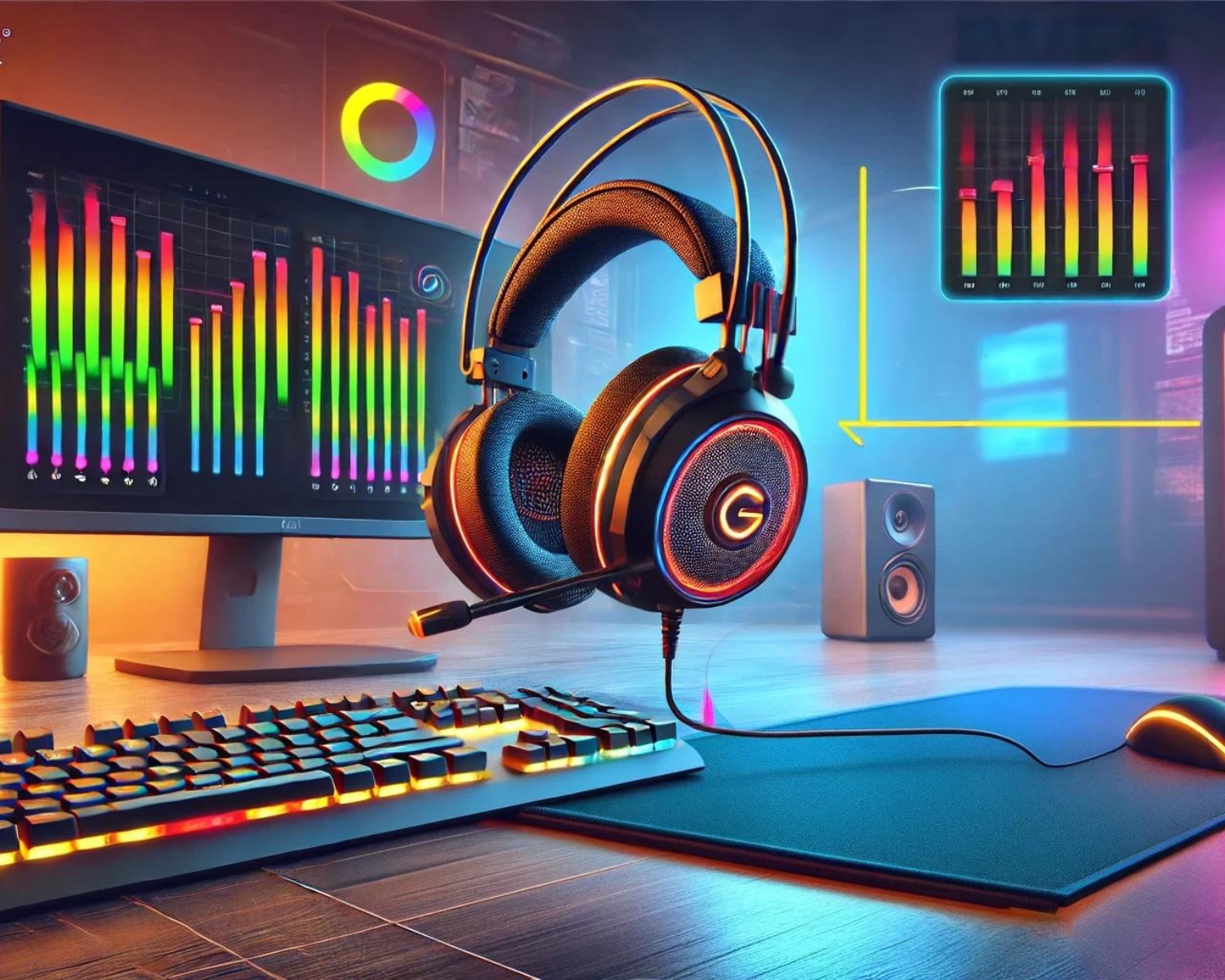
Setting Up Your ZIUMIER Headset for Optimal Sound Quality
Introduction
A quality gaming headset can significantly enhance your gaming experience, and the ZIUMIER headset lineup offers impressive sound performance that can be optimized to deliver even better results. Whether you’re using your headset for immersive gameplay, clear communication, or enjoying your favorite music, setting up your ZIUMIER headset properly can make a big difference in sound quality.
Here’s a step-by-step guide to setting up your ZIUMIER headset for optimal audio performance.
1. Plugging In and Selecting the Right Audio Source
Before adjusting settings, ensure your ZIUMIER headset is connected correctly. ZIUMIER headsets typically have a USB connection or a 3.5mm jack, making them compatible with various devices like PCs, gaming consoles, and mobile phones.
- For PC Users: Plug the USB connector or 3.5mm jack into the appropriate port on your computer. If prompted, select the ZIUMIER headset as the primary audio output device by navigating to Sound Settings (Windows) or System Preferences (Mac).
- For Consoles: Plug the headset into the controller or audio port. Most consoles will automatically detect the headset, but you may need to manually select it as the audio device in your console’s settings.
2. Adjusting Sound Settings for Gaming and Music
Once your headset is connected, adjust the sound settings to suit your needs. ZIUMIER headsets often feature 7.1 surround sound, which is ideal for gaming as it provides spatial awareness, but you might prefer stereo settings for music or other media.
- Enable 7.1 Surround Sound: If your headset supports it, activate 7.1 surround sound for an immersive gaming experience. Many ZIUMIER headsets include an in-line control or dedicated software where you can enable this feature.
- Adjust Equalizer Settings: To fine-tune your audio, use the equalizer settings in your computer’s sound control panel or dedicated gaming software. Boost bass frequencies for a deeper sound in action games, or enhance treble and midrange for clear dialogue and sound effects.
3. Optimizing Microphone Settings for Clear Communication
Clear communication is essential for team-based games. The ZIUMIER headsets come with noise-canceling microphones designed to capture your voice while minimizing background noise.
- Adjust Microphone Sensitivity: Access your sound settings and select the microphone input device on a PC. Adjust the microphone sensitivity so your voice is picked up clearly without distortion. Similar settings can typically be found in the audio or accessory settings menu for consoles.
- Position the Microphone Correctly: To prevent popping sounds, position the microphone boom close to your mouth, but avoid placing it directly in front of your mouth. Place it at the side of your mouth, about an inch away, for optimal sound pickup.
4. Test and Tweak
Finally, test your setup by playing a game or listening to a song. Make minor adjustments as needed to achieve the perfect sound balance. You can also test the microphone by recording your voice or doing a quick voice chat to ensure it sounds straightforward to others.
Conclusion
Setting up your ZIUMIER headset for optimal sound quality is simple but can significantly enhance your audio experience. By choosing the correct settings, adjusting the equalizer, and positioning the microphone correctly, you can enjoy clear, immersive sound and better communication. Whether gaming, listening to music, or streaming content, these tips will help you maximize your ZIUMIER headset’s capabilities.
#ZIUMIERHeadset #SoundQuality #GamingSetup #HeadsetTips #AudioOptimization #GamerGear #GamingHeadset #MicSettings #ImmersiveAudio #GamingTech