


No products in the cart.
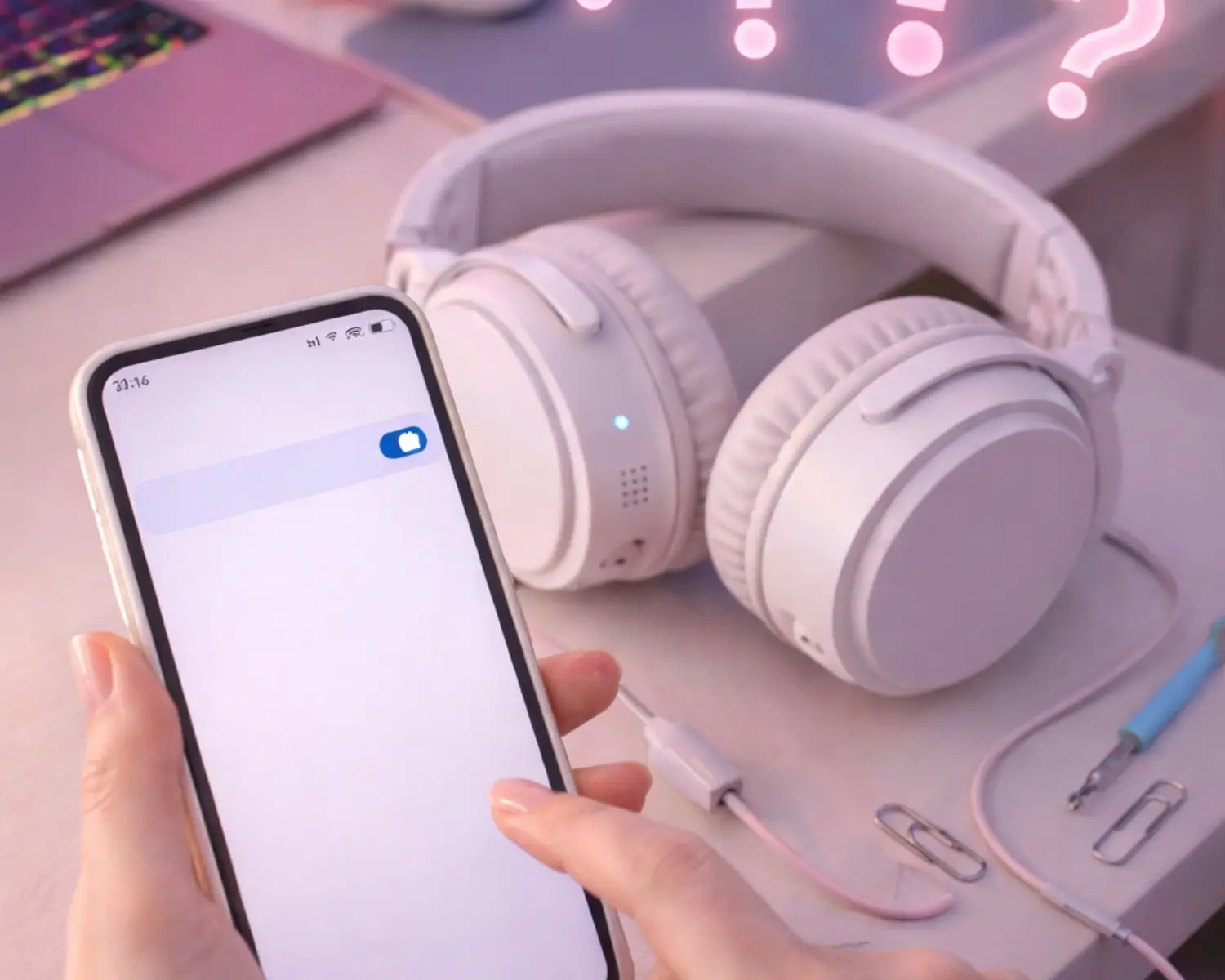
Troubleshooting Common Bluetooth 5.2 Headset Issues
Bluetooth 5.2 headsets deliver faster connections, improved stability, and better audio quality—but like any wireless technology, occasional issues can still arise. From pairing problems to audio dropouts, understanding how to troubleshoot common Bluetooth headset issues can save time and frustration. At Earbuds for Life, we believe enjoying premium sound should be smooth and hassle-free, and a little know-how goes a long way.
Pairing and Connection Problems
One of the most common issues users face is difficulty pairing their headset with a device. If your Bluetooth 5.2 headset won’t connect, start by turning Bluetooth off and on again on your device. Make sure the headset is in pairing mode and not already connected to another device. If problems persist, remove the headset from your device’s Bluetooth list and re-pair it from scratch. Restarting both devices often resolves connection conflicts.
Audio Dropouts or Interference
Audio cutting in and out can be frustrating, especially during gaming, streaming, or calls. Bluetooth signals can be affected by physical obstacles, Wi-Fi routers, or other nearby wireless devices. Try reducing interference by staying within the recommended range and minimizing obstacles between your headset and device. Updating your device’s operating system can also improve Bluetooth performance and compatibility.
Poor Sound Quality or Lag
If you notice distorted sound or audio delay, check your device’s audio settings and ensure the correct Bluetooth audio codec is enabled. Bluetooth 5.2 is designed to reduce latency, but background apps or outdated firmware can still cause lag. Closing unused apps and updating headset firmware can significantly improve performance. Earbuds for Life headsets are built to deliver immersive audio, and keeping both devices updated ensures you experience their full potential.
Microphone Not Working Properly
Microphone issues often stem from incorrect input settings. Check your device’s sound settings to confirm the headset is selected as the default microphone. Dust buildup can also affect mic clarity, so gently clean the microphone area with a soft brush or cloth. For calls and streaming, test the microphone in multiple apps to identify whether the issue is app-specific.
Battery and Charging Issues
If your headset isn’t charging or drains quickly, inspect the charging cable and port for dust or damage. Use the recommended charger and avoid overcharging. Lithium batteries perform best when kept at a moderate charge level. If battery performance declines over time, recalibrating by fully charging and then draining the battery once can help.
Resetting the Headset
When all else fails, performing a factory reset often resolves persistent issues. Refer to your headset’s instructions for reset steps, then re-pair the device. This clears stored connections and restores default settings.
Bluetooth 5.2 headsets are powerful, but occasional issues can happen. With simple troubleshooting steps and regular maintenance, you can enjoy a smooth, reliable audio experience. Earbuds for Life is committed to delivering quality sound and helping you get the most from your wireless gear—because great audio should always be effortless.
#EarbudsForLife #BluetoothHeadset #WirelessAudio #Bluetooth52 #AudioTroubleshooting #GamingHeadset #TechTips #HeadsetSupport #SoundQuality