


No products in the cart.
Why Your Headphones Keep Jumping to the Wrong Device: The Multipoint Bluetooth Problem Explained
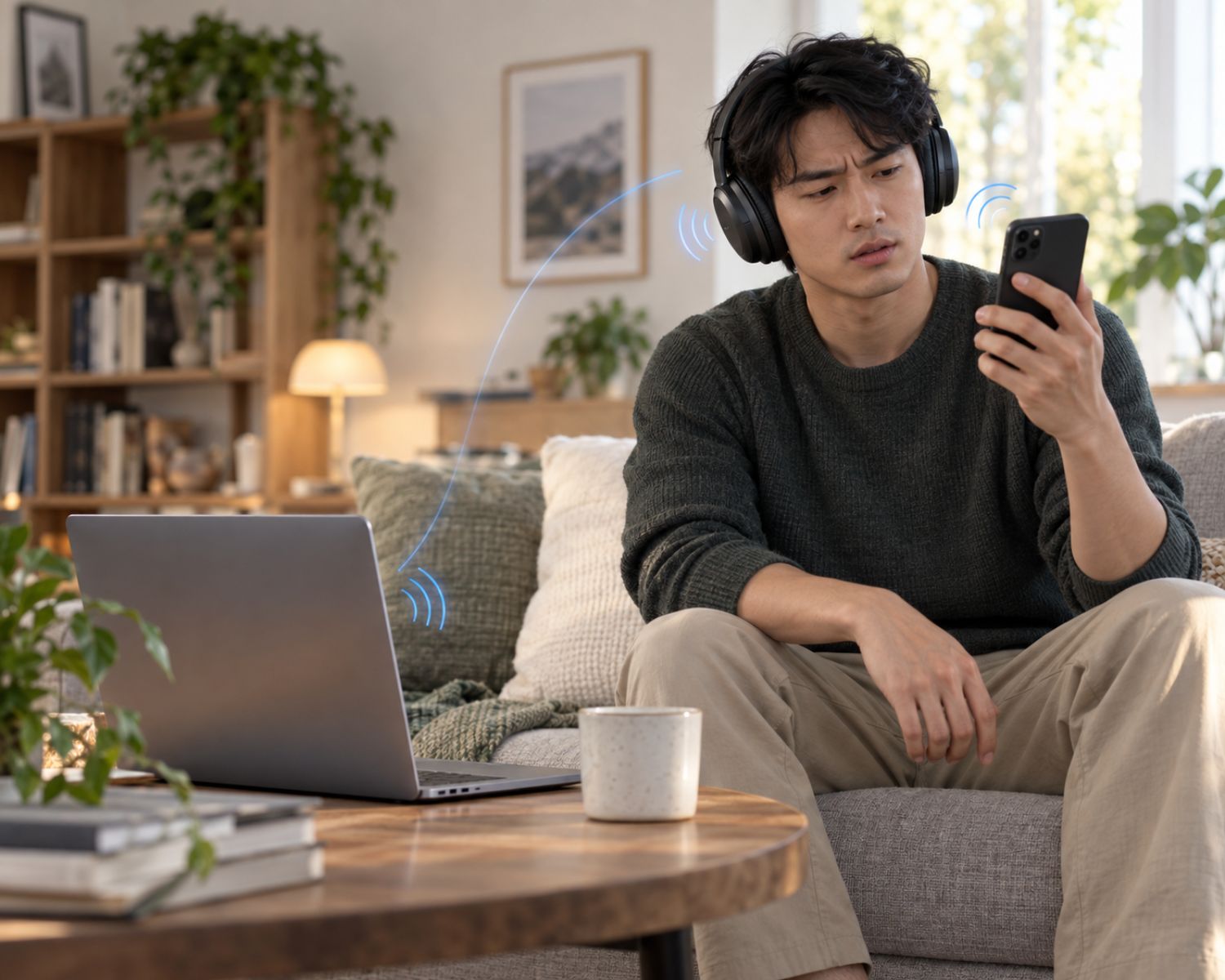
You are halfway through a video on your laptop when your headphones suddenly abandon ship and connect to your phone. You are not receiving a call. You did not touch anything. Yet your laptop is now playing sound through its speakers while your headphones sit there acting as though they have made an important executive decision.
This irritating little betrayal is often caused by multipoint Bluetooth. The feature is designed to make life easier by allowing headphones or earbuds to stay connected to more than one device.
However, when phones, laptops, tablets, notifications, video calls, and operating systems all want attention at once, multipoint can become less of a convenience and more of a tiny wireless tug-of-war.
The good news is that this problem usually does not mean your headphones are broken. It often comes down to how the devices are connected, which one is trying to play audio, and what rules the headphone manufacturer has set for switching between them.
What Multipoint Bluetooth Is Supposed to Do
Multipoint Bluetooth allows a compatible pair of headphones or earbuds to maintain connections with two devices at the same time. For example, your headphones may stay connected to your phone and laptop, so you can watch a video on the laptop and answer a phone call without manually disconnecting and reconnecting each time.
On paper, that sounds wonderfully civilized. In practice, it depends on the model, the devices involved, and the kind of audio that begins playing. Some headphones pause laptop audio when a phone call arrives, then return to the laptop when the call ends. Others prioritize any sound from the phone, including a short notification or an autoplaying social-media video that you did not even mean to open.
The important detail is that multipoint does not work identically on every product. Some devices switch smoothly between two sources, while others allow two connections but behave more cautiously.
A few models may stay paired with several devices but actively play audio from only one at a time. That difference is why two people can own headphones with “multipoint” on the box and have completely different experiences.
Why Your Headphones Choose the Wrong Device
Your headphones are not actually choosing favorites, even if it feels personal. They are reacting to whichever device sends an audio request that the headphones interpret as more urgent.
Phone calls often take priority because they need two-way audio through the microphone. Video meetings can do the same thing, especially if an app on your laptop quietly joins a call or checks microphone access in the background.
Notifications may also trigger a switch on some devices, particularly if your phone treats them as active audio instead of a quick alert.
Autoplay is another common culprit. A social-media app may start playing a short clip while you are scrolling. A browser tab may resume a video. A music app may reconnect after an update. Your headphones then detect sound from that second device and decide they have been summoned elsewhere.
The issue can become even more confusing when a device does not release the connection properly. Your phone may appear idle, but an app could still be holding the Bluetooth audio channel open. Your laptop may show the headphones as connected, yet it may not regain control until you manually select them in the sound settings.
Start With the Simple Fixes
Before you start deleting Bluetooth settings and wondering whether your headphones have developed a secret agenda, check what each device is doing. Pause audio on both devices, close any call apps, and turn off media that may be playing in the background. Then try playing audio from the device you actually want to use.
If the headphones do not return to the correct device, open that device’s sound settings and select the headphones as the output manually. On a phone, this may mean choosing the headphones from the media-output menu.
On a laptop, it may mean selecting them again in the audio settings rather than assuming the system will switch automatically.
It also helps to keep both devices updated. Bluetooth behavior can change after phone, laptop, or headphone firmware updates, and older software can sometimes create odd connection conflicts. Since multipoint relies on several devices understanding one another, one outdated link in the chain can make the entire arrangement wobble.
If you are using older headphones that regularly lose control of the connection, it may be worth comparing newer wireless Bluetooth headphones that clearly explain how they handle multipoint.
The word “multipoint” alone is useful, but the manufacturer’s instructions should also explain whether the headphones support switching between calls, media, computers, and phones in the way you actually need.
Check Which Device Is Competing for Audio
Your phone is often the main suspect because it receives calls, alarms, app alerts, voice notes, videos, and notifications all day. Turning off unnecessary notification sounds can reduce surprise switches, especially if you regularly use headphones with a laptop.
You should also look at apps that use the microphone. Voice assistants, messaging apps, video-call platforms, and recording tools can all request audio access. A device that is trying to use your headphone microphone may take priority over a device that is only playing music or video.
Your laptop can be equally guilty. Video-conferencing apps sometimes remain open in the background, while browsers may continue holding an audio session after you close a tab.
If your headphones keep reconnecting to your computer when you are trying to use your phone, quit unused meeting apps and check whether a browser tab is still producing sound.
The goal is not to disconnect everything forever. It is to identify the one device that is quietly shouting, “Pick me!” every few minutes.
Re-Pairing Should Be the Reset Button, Not the First Button
Re-pairing can fix a stubborn connection, but it should not be the first move every time something goes slightly wrong. Constantly forgetting and reconnecting devices can become exhausting, particularly if you use headphones across a phone, tablet, laptop, and work computer.
Try a lighter reset first. Disconnect the headphones from the device causing problems, wait a few seconds, and reconnect them. If that does not work, restart the headphones and the device you want to use. This often clears a stuck audio session without forcing you to rebuild every Bluetooth connection from scratch.
A full re-pair is more useful when devices are showing incorrect names, refusing to connect, or remaining linked to old phones you no longer use. When you do re-pair, remove the headphones from the Bluetooth settings on both devices and start fresh.
Otherwise, one device may keep trying to use the old connection profile while the other uses the new one, which is a reliable recipe for more confusion.
Turn Multipoint Off When You Need One Device Only
Multipoint is helpful when you genuinely need two devices connected, but it is not compulsory. If you are preparing for a long flight, focusing on a work task, gaming, or watching a movie, connecting to one device only can create a much calmer experience.
Some headphones let you disable multipoint through the companion app. Others require you to disconnect the second device manually. Either option is fine if it stops your audio from jumping around when you need a stable connection.
This is especially useful for gaming and video calls. Those activities often rely on stable sound and microphone access, and an unexpected switch to a nearby phone can turn a perfectly normal conversation into a frantic search through Bluetooth menus. A single active connection may be less flexible, but it is often more predictable.
Final Thoughts
Multipoint Bluetooth is one of those features that feels brilliant when it behaves and baffling when it does not. The same function that saves you from constant re-pairing can also create a small household drama between your phone, laptop, and tablet.
Once you understand that your headphones are responding to competing audio requests, the problem becomes easier to solve.
Check which device is playing sound, close unused call apps, update your software, and disable multipoint when you need one stable connection. Your headphones should make switching between devices easier, not make you feel as though you are negotiating peace terms between them.
#MultipointBluetooth #WirelessHeadphones #BluetoothTips #Earbuds #AudioProblems #HeadphoneHelp