


No products in the cart.
Why Your Headphones Sound Terrible the Moment You Join a Call: The Bluetooth Mode Switch Explained
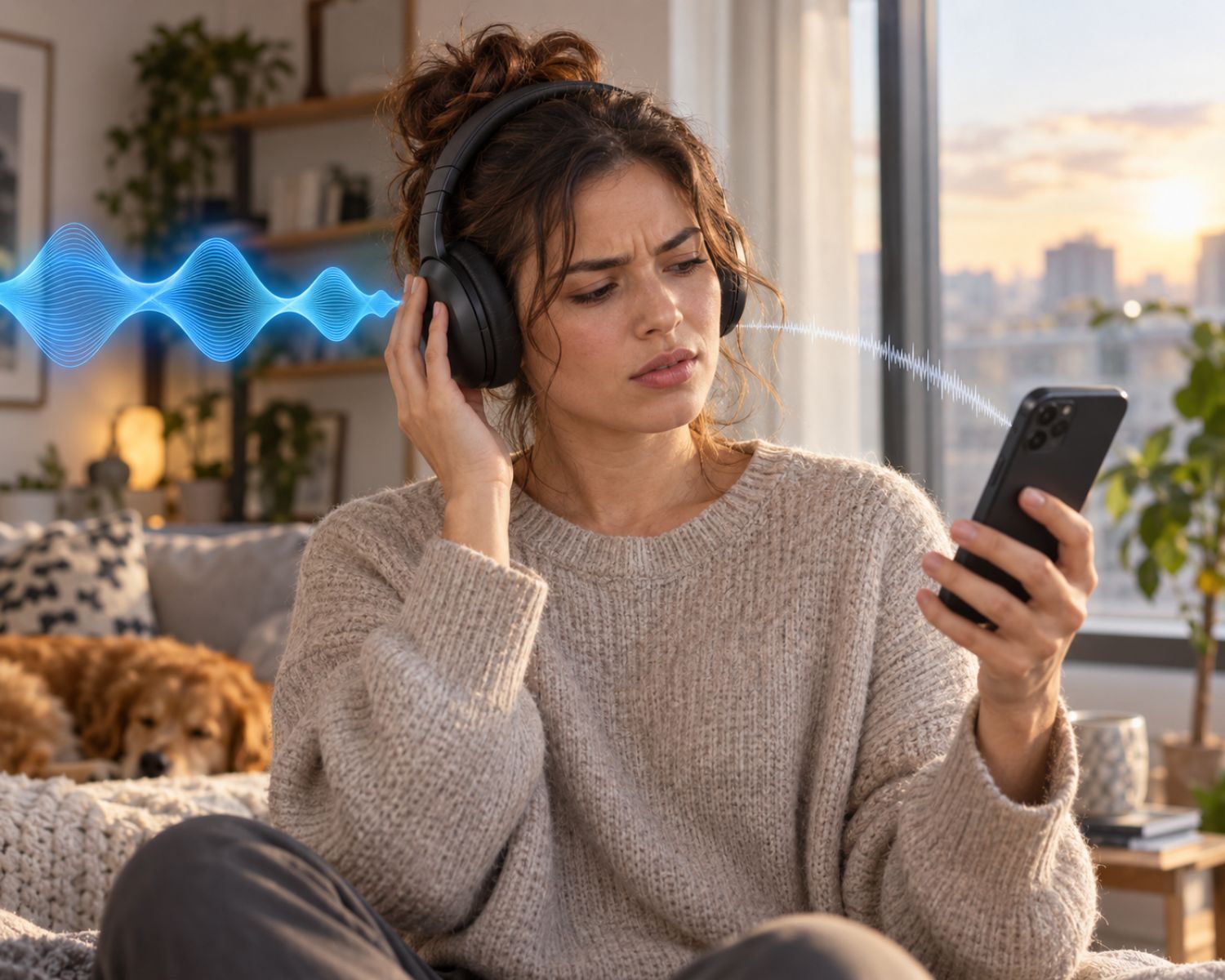
Your wireless headphones may sound rich, detailed, and impressively wide while you listen to music. Then you join a video meeting, open game chat, or record a voice note, and the sound suddenly becomes thinner, flatter, and strangely cramped.
The headphones did not necessarily break. In many cases, they switched Bluetooth modes because the microphone became active.
This is one of the most confusing headphone problems because it can feel like a major drop in quality with no obvious explanation. You may blame the streaming app, the meeting platform, your phone, or the headphones themselves. However, the real issue is often the way Bluetooth handles music and two-way voice communication.
Once you understand what changes during a call, you can make better settings choices and avoid chasing fixes that will not solve the actual problem.
Music Mode and Call Mode Do Different Jobs
When you listen to music, your headphones usually use a Bluetooth mode designed for higher-quality stereo sound. This mode focuses on sending audio from your phone, computer, or tablet to both sides of your headphones as clearly as the connection allows.
A call is different because your device also needs to receive your voice through the headphone microphone. Bluetooth must create a two-way audio connection, which requires it to prioritize communication over music quality.
That trade-off can make music, games, and video sound more compressed when the microphone is active. The result may feel similar to listening through an old phone speaker. It is not exactly charming, especially when you were enjoying a song five seconds earlier.
This issue is most common with Bluetooth headphones that use their built-in microphone during calls. Wired headphones and USB headsets can behave differently because they do not always face the same Bluetooth bandwidth limits.
Why Games and Video Meetings Can Trigger the Problem
The mode switch does not only happen during phone calls. It can happen whenever an app activates the microphone.
A gaming app may switch the headphones into call mode when voice chat begins. A video meeting platform may do the same even if you are not speaking. A browser tab with microphone permission can also trigger the change, particularly if a website or app is trying to access your headset microphone in the background.
This is why some people notice that their game audio sounds worse the moment they enter a multiplayer lobby. The game itself may still be running normally, but the audio connection is now sharing space with the microphone.
The same issue can happen during remote meetings. You may join a video call, hear the meeting audio change, and assume your connection is weak. In reality, the headphones may be working exactly as Bluetooth intended, although that intention is not always kind to your favorite playlist.
Check Which Microphone Your Device Is Using
The quickest solution is often to change the microphone source. If you are using a laptop, you may be able to select the computer’s built-in microphone while keeping the headphones connected only for audio playback.
This allows the headphones to remain in higher-quality stereo mode because they no longer need to send your voice through Bluetooth. It is particularly helpful for video meetings where you care about listening quality and your laptop microphone is good enough for the environment.
On a computer, check the audio settings inside the meeting or gaming app first. Then check the operating system’s sound settings.
Some devices list separate headphone options for stereo playback and headset communication, which can look confusing at first. The stereo option is usually better for music and general audio, while the headset option is designed for calls.
If you use a desktop computer, a separate USB microphone can also solve the issue. It gives you clearer voice quality while allowing your Bluetooth headphones to focus on playback.
Review App Permissions and Background Audio Access
Some sound problems appear because an app has microphone access when it does not need it. A browser, game launcher, messaging app, or recording tool may quietly activate the microphone, which can cause your headphones to switch modes.
Review microphone permissions on your phone, tablet, or computer. If an app does not need microphone access, turn it off. This can prevent unnecessary mode switching and reduce the number of times your audio quality changes without warning.
You should also close apps that may still be using the microphone. Leaving a meeting app open after a call, for example, can keep the headset in communication mode on some devices. Closing the app completely and reconnecting the headphones may restore normal playback.
Understand the Limits Before Buying New Headphones
It is easy to assume that expensive Bluetooth headphones will avoid this problem entirely. Better headphones can improve microphone quality, noise handling, and overall sound performance, but the basic trade-off between high-quality stereo playback and two-way Bluetooth communication can still exist.
That is why it helps to think about how you use headphones before buying them. If you mostly listen to music, watch movies, and take occasional calls, standard wireless headphones may be a great fit.
If you spend long hours in meetings, game with friends every evening, or record content regularly, you may benefit from a headset with a dedicated wireless dongle, a strong detachable microphone, or a wired USB option.
When you compare headphone options through Earbuds4Life, think beyond battery life and noise cancellation. Call performance, microphone behavior, and device compatibility can matter just as much in everyday use.
Improve Call Sound Without Sacrificing Everything Else
You may not be able to remove Bluetooth’s limitations completely, but you can make the experience smoother. Keep your headphones updated, make sure your device is using the correct audio output, and avoid connecting several Bluetooth devices at once when you need reliable call quality.
You can also reduce interference by keeping your phone or computer close to the headphones and avoiding crowded wireless environments when possible. Although the mode switch is the main reason for the sound change, a weak Bluetooth signal can make the problem feel even worse.
If you regularly move between music, calls, and gaming, test your headphones in each situation. A pair that sounds excellent for music may still be frustrating for multiplayer chat, while a headset built for communication may not deliver the same music experience.
Final Thoughts
When your headphones suddenly sound worse during calls, the problem is often not a faulty pair or a bad internet connection. Bluetooth is simply changing its priorities so that it can handle your voice as well as incoming audio.
Once you know what is happening, you can choose the right microphone settings, close unnecessary apps, and select headphones that fit the way you actually communicate. You should not have to accept poor sound without understanding why it changed.
#BluetoothHeadphones #HeadphoneProblems #AudioQuality #VideoCalls #GamingHeadsets #WirelessAudio #HeadphoneTips #Earbuds4Life